Docker desktop
Installing Docker Desktop from the Microsoft app store
-
Go to the Docker Desktop page at the Micofrot app store:
https://apps.microsoft.com/detail/XP8CBJ40XLBWKX -
Select the Get or Install button.
-
Wait for the download to finish; it will automatically install.
-
Once installed, click Open to launch the app.
Installing Docker Desktop with the installer from the official Docker website
-
Go to the Docker Desktop page at the official Docker website:
https://www.docker.com/products/docker-desktop -
Download the Docker Desktop installer
-
Follow the instructions; wait for the install to finish.
-
Once installed, click Open to launch the app.
-
Find and open Docker Desktop from the Start button on your taskbar.
WSL integration
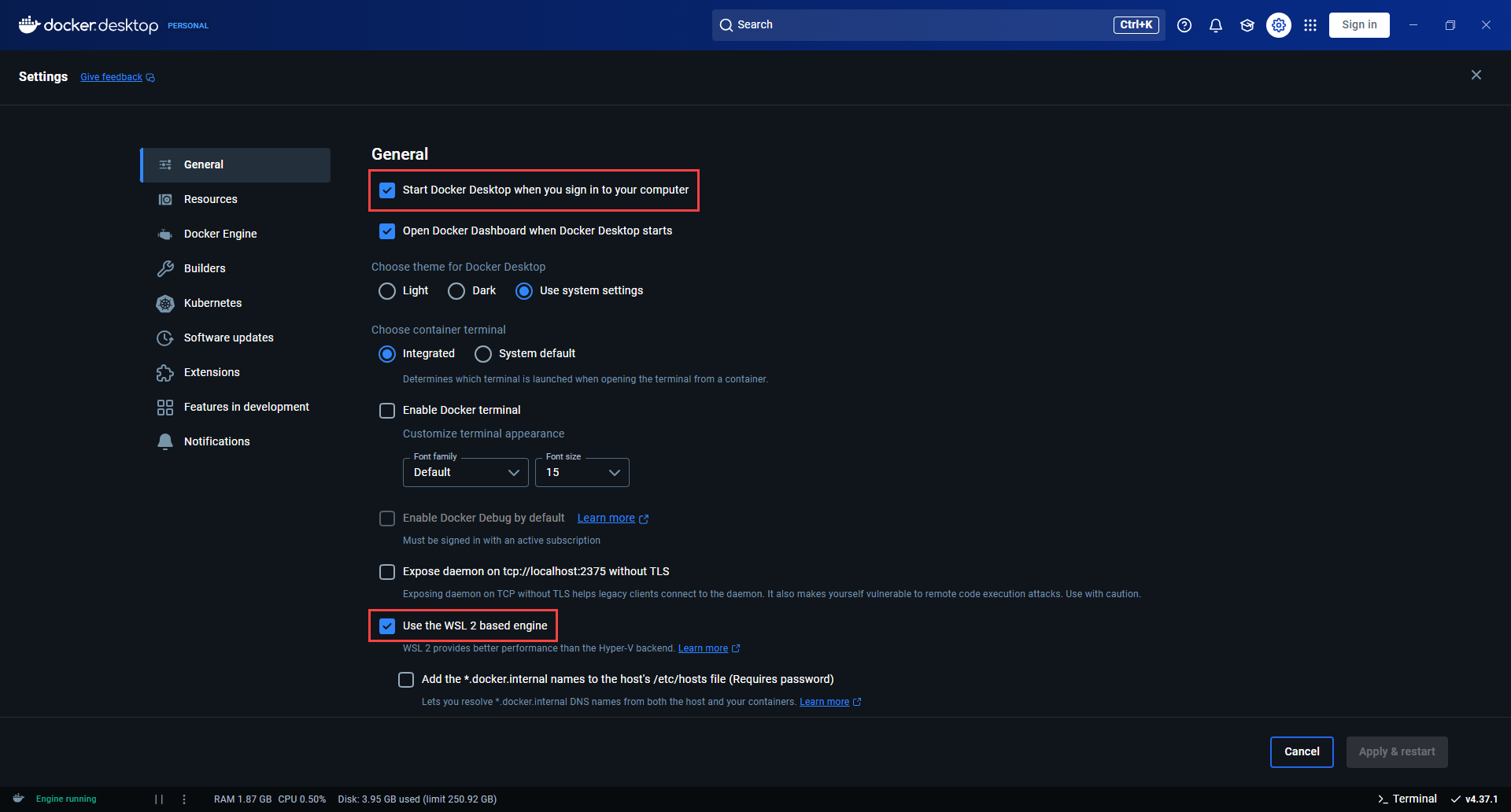
Once Docker Desktop has been installed, ensure that "Start Docker Desktop when you log in" and "Use the WSL 2 based engine" are checked in Settings > General:
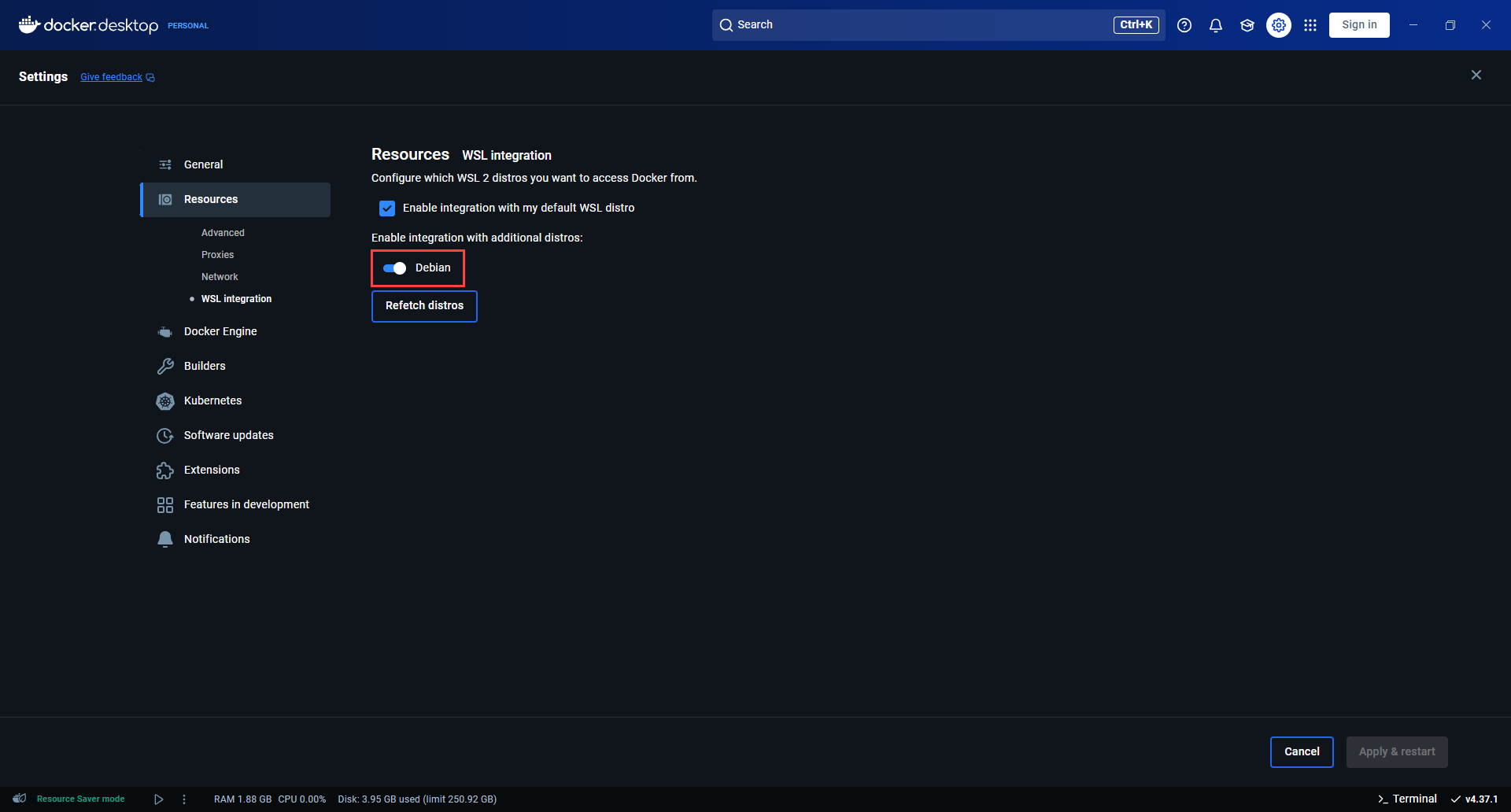
Select from your installed WSL 2 distributions which you want to enable Docker integration on by going to: Settings > Resources > WSL Integration: